Prepayments for Sage 50, without the spreadsheet
Sage 50 Standard has no prepayments module, and Professional's spreads only 2 to 12 equal months. Runoff builds the schedule, writes the monthly release journal as an Excel file Sage 50 imports, ties the balance to your prepayments account and gives you the year-end working paper.
✓ Import tested in Sage 50 AccountsFree during the beta. No sign-up needed. Your figures stay in your browser.
What Sage 50 gives you, and what Runoff adds
| Sage 50 Standard | Sage 50 Professional | Runoff | |
|---|---|---|---|
| Prepayments module | Not included | Included | Works with Standard and Professional |
| Length of spread | – | 2 to 12 months | Any length, including multi-year |
| Release pattern | – | Equal amounts, rounding in the last month | Equal monthly, by days, in a single month (events), or amounts you set |
| Changing an entry | – | Delete and re-add; journals already posted are reversed by hand | Edit the bill; a locked month shows exactly what changed |
| Tie to the ledger | – | – | Schedule reconciled to your prepayments balance every month |
| Year-end evidence | – | – | Excel working paper: lead schedule, release profile, journal and notes |
Sage 50 details from Sage's own help article on automatic prepayments and its Community Hub. Check your version if you're unsure.
Three steps at month-end
Add the month's prepaid bills
Paste them from a Sage 50 report or Excel, or add them by hand. Runoff reads the service period from descriptions like "Insurance 01/07/26 - 30/06/27".
Check the tie-out
Enter your balance on 1103 Prepayments from the trial balance. Runoff shows a tick when the schedule agrees, and the difference when it doesn't.
Import the journal
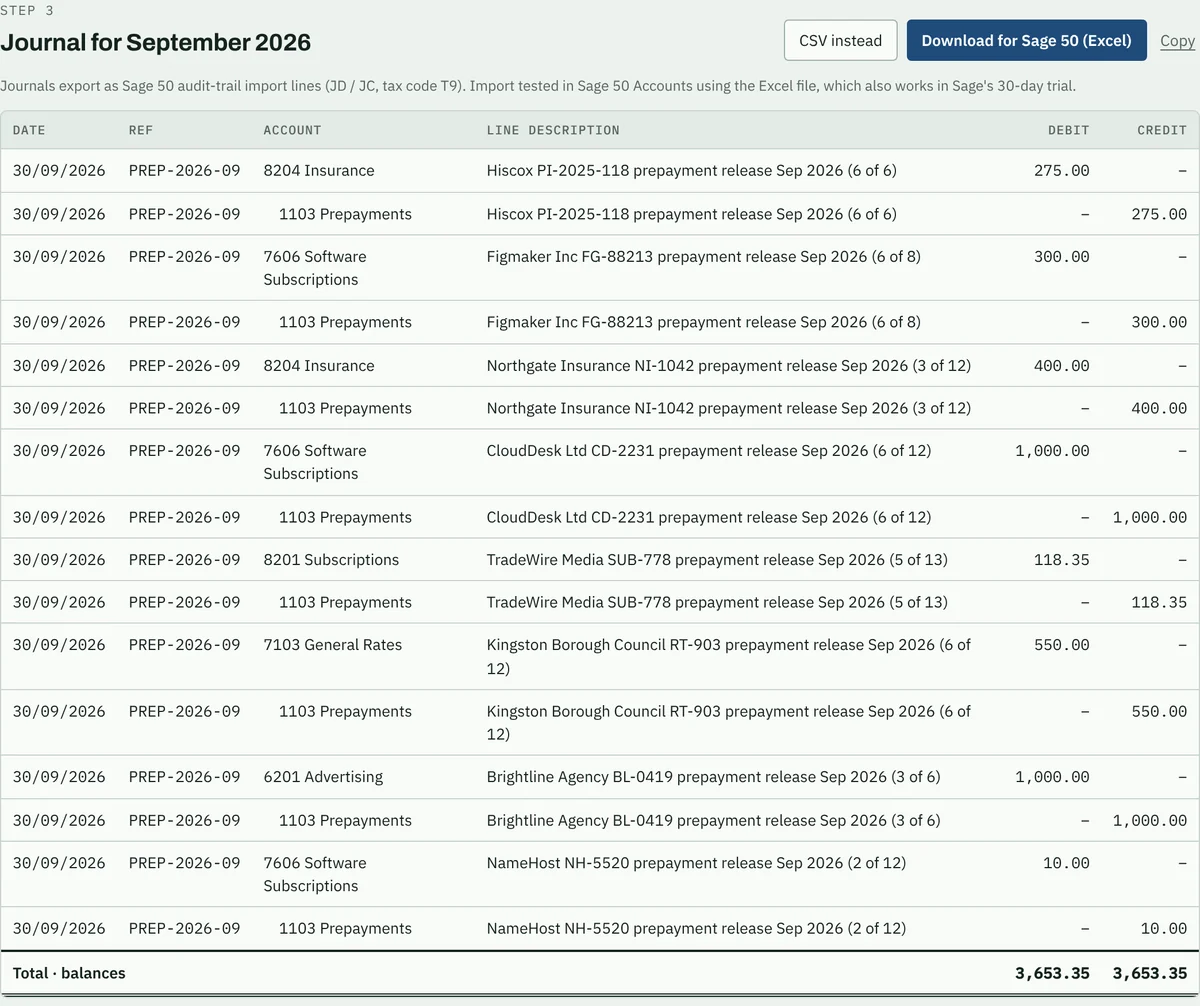
Download the Excel file and import it in Sage 50 through File > Import > Audit Trail Transactions. Lines post as JD/JC with tax code T9.
What to know before your first import
- The file uses the same columns, in the same order, as Sage 50's own audit trail template.
- Nominal codes must already exist in Sage. Runoff stops the download if a code isn't in Sage 50's numeric format, so a typo doesn't reach Sage.
- Departments are optional; leave them blank to use department 0.
- If an import fails, Sage shows an error message. Back up your Sage data first, try a one-line journal, and email the error text to hello@getrunoff.co.uk. You don't need to send client figures.
- The Excel import also works in Sage 50's 30-day trial, which blocks CSV imports. A CSV is there if you prefer it.
Your data stays with you
Bills and figures are saved in your own browser and never sent to us. Download a backup file at each month-end to keep a copy or move to another computer. That suits client work: nothing to sign off with a new data processor.
Built by someone who does month-end
Runoff is built by Stefan, who works in accounts. It's new and free while it's in beta. The planned price after the beta is £10 per client company per month, from February 2027. I'll email you before anything is charged, and you can stop at any time. Practices that run it on a real month-end and tell me what's missing keep that price for 12 months. If something doesn't fit how your practice works, email hello@getrunoff.co.uk and I'll fix it.